These steps are available at bit.ly/square-dash-steps.
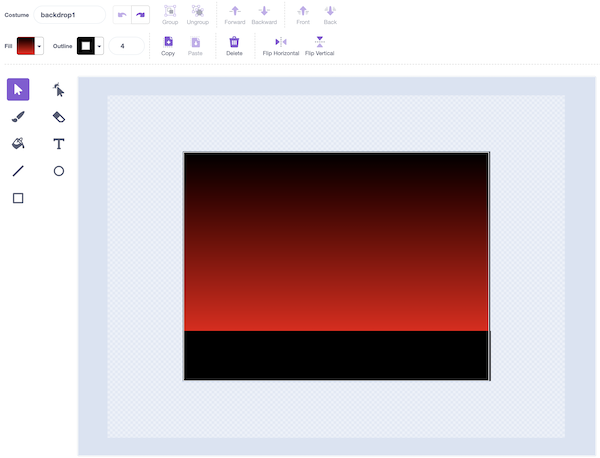
🎨 Step 1: Draw the background
Start with an empty Scratch project. Draw the background however you want, but include a floor at the bottom for your player to stand on.
🧑 Step 2: Draw the player sprite
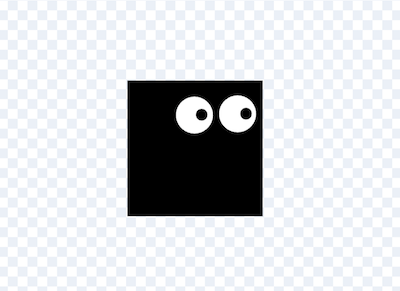
Design your player however you like.
📍 Step 3: Position the player on the ground
when green flag clicked
go to x: [-150] y: [-75]
🦘 Step 4: Make the player jump
Add a forever loop
when green flag clicked
go to x: [-150] y: [-75]
forever
    if <key (space v) pressed?> then
        repeat (12)
            change y by (10)
        end
        repeat (12)
            change y by (-10)
        end
    end
end
- Can you change the height that the player jumps?
- Can you make the player jump slower or faster?
- Can you make the player do a backflip when they jump?
- Can you make the player jump more smoothly? TRICKY 🤔
🚧 Step 5: Draw an obstacle sprite
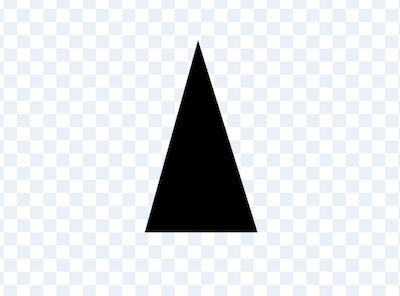
Draw something for the player to jump over.
👥 Step 6: Create a clone
Rather than move the obstacle sprite itself, we are going to create a clone. That will allow us to have more than one obstacle on the screen at the same time. Inside the obstacle sprite add this code:
when green flag clicked
hide
forever
    create clone of (myself v)
    wait (2) seconds
end
And also add this block which uses a repeat until to move the sprite from right-to-left across the screen. You will want to adjust the coordinates to work for your sprites and background image.
when I start as a clone
go to x: (240) y: (-100)
show
repeat until <(x position) < (-240)>
    change x by (-10)
end
hide
- Can you make the obstacle move faster or slower across the screen?
- Can you make the obstacles appear more regularly?
- Can you make the obstacles appear at random times?
- Can you make the size of obstacles be random?
- Can you add different types of obstacles?
- Can you add a floating obstacle?
- Can you make the obstacles spin or move up and down?
💥 Step 7: End the game when the player hits the obstacle
Inside the repeat until we are going to add a check to see if the obstacle is touching the player. If it is, we will broadcast a game over message.
when I start as a clone
go to x: (240) y: (-100)
show
repeat until <(x position) < (-240)>
    change x by (-10)
    if <touching (player v)?> then
        broadcast (game over v)
    end
end
hide
💀 Step 8: Create a game over sprite
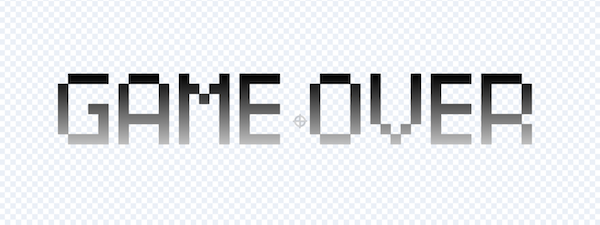
Create a new sprite which will be displayed when the game is over. You could use the Text tool to write the words “game over”.
📢 Step 9: Display the game over sprite
When the game starts, you should position the game over sprite in the right position and hide it.
when green flag clicked
go to x: (0) y: (36)
hide
So far, nothing happens after we broadcast the game over message. We are going to receive it inside the game over sprite:
when I receive [game over v]
show
stop [all v]
📏 Step 10: Count the distance travelled
Create a variable called distance and make sure it is ticked so it appears on the screen.
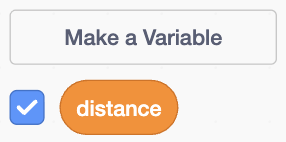
Add this new code block to the player sprite.
when green flag clicked
forever
wait (0.1) seconds
change [distance v] by (1)
end
- How do you set the distance back to zero when the game starts?
- How do you make the distance go up more quickly or slowly?
- How do you store the furthest distance you have reached?
🤔 Challenges
- Can you change the background colour as you progress?
- Can you add levels and make the game get faster with each level?
- Can you add sound effects when you jump or when you hit an obstacle?
- Can you add background music?
- Can you add lives so that you don’t lose the first time you hit an obstacle?
- Can you add different player avatars?
- Can you animate the player? For example, can make the eyes blink?